Access Payment Providers
Go to:
Accounting / Invoicing → Configuration → Payment Providers
Enable a Payment Provider
Open the required provider (e.g. Stripe, PayPal, Razorpay, Authorize.Net, Adyen)
Click Activate or Enable
Set State:
Test Mode → For testing
Enabled / Live → For production
Configure Provider Credentials
Each provider requires API credentials:
Examples:
Stripe → Publishable Key & Secret Key
PayPal → Client ID & Secret
Razorpay → Key ID & Key Secret
Get Provider Credentials (PayPal)
Configuration in PayPal
- Log into your PayPal Developer Dashboard.
- Click Apps & Credentials and click Create App. https://developer.paypal.com/dashboard/
- Enter an App Name and click Create App.
- Copy the Client ID and Secret and save
Configuration in Odoo
- Navigate to the payment provider PayPal.
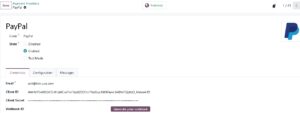
- In the Credentials tab, enter the Email linked to your PayPal account, then fill in the Client ID and Client Secret fields with the values you saved at the step Configuration in PayPal.
- Click Generate your webhook to create the Webhook ID.
- Set the State field to Enabled and make sure the PayPal payment provider is Published.
- Configure the remaining options as desired.
To test the PayPal payment workflow in Odoo:
- Log into the Paypal Developer Site using your PayPal credentials and go to .
- Click the (ellipsis) icon next to the sandbox business account and select View/Edit account.
- Copy the Email, Client ID, and Secret and save them for the next step.
- In Odoo, configure the PayPal payment provider with the values saved at the previous step and set the State field to Test Mode.
You can then run a test transaction from Odoo using the sandbox personal account.
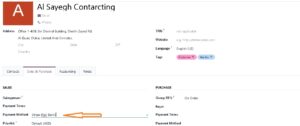
Set “Payment method” in customer master is mandatory.